Why Is My .NET App Slow? Find and Fix Slow SQL From Your Browser


A page lists an author's books. On your machine it's instant. In production, with real data, it's slow, and the SQL looks fine:
var q = db.From<Book>()
    .Where(x => x.Author == "J.R.R. Tolkien")
    .OrderBy(x => x.Year);

var books = db.Select(q);
The SQL was never the problem. The problem is how the database runs it, and the only way to know that is to ask it.
Ask the database with db.Explain()
ServiceStack v10.4 adds db.Explain() to OrmLite, which takes the same typed query and returns its query plan
as text, without running it:
string plan = db.Explain(q);
With 5,000 books, SQLite's answer is:
SCAN Book
USE TEMP B-TREE FOR ORDER BY
SCAN Book means it reads every row of the table to find the 4 books by Tolkien. PostgreSQL says the same with a
Seq Scan on book, SQL Server with a Clustered Index Scan, and MySQL and MariaDB with a type of ALL reading all
5000 rows.
As the query isn't run or modified, it's safe to call anywhere: in tests, in admin UIs or when logging slow queries.
Add the index, and prove it worked
The fix is an index on the column the query filters on, which in OrmLite is one [Index] attribute:
public class Book
{
    [AutoIncrement]
    public int Id { get; set; }
    public string Title { get; set; }
    [Index]
    public string Author { get; set; }
    public int Year { get; set; }
}
Then check the plan again. SQLite now searches the index instead of scanning the table:
SEARCH Book USING INDEX idx_book_author (Author=?)
USE TEMP B-TREE FOR ORDER BY
SQL Server seeks the index, then looks up each row by its primary key:
|--Sort(ORDER BY:([test].[dbo].[Book].[Year] ASC))
     |--Nested Loops(Inner Join, OUTER REFERENCES:([test].[dbo].[Book].[Id]))
          |--Index Seek(OBJECT:([test].[dbo].[Book].[idx_book_author]), ...)
          |--Clustered Index Seek(OBJECT:([test].[dbo].[Book].[PK__Book__...]), ... LOOKUP ...)
PostgreSQL switches to a Bitmap Index Scan on idx_book_author, and MariaDB reports a key of idx_book_author
reading 4 rows. No guesswork, the database tells you it's using it.
Estimated vs. actual with analyze
A plan is the database's estimate. Pass analyze: true and the query is run, so the plan includes what actually
happened, i.e. the real rows and time of each step:
string plan = db.Explain(q, analyze: true);
Here's PostgreSQL's analyzed plan before the index was added:
Sort  (cost=54.07..54.08 rows=3 width=619) (actual time=0.234..0.234 rows=4 loops=1)
  Sort Key: year
  Sort Method: quicksort  Memory: 25kB
  ->  Seq Scan on book  (cost=0.00..54.05 rows=3 width=619) (actual time=0.230..0.230 rows=4 loops=1)
        Filter: (author = 'J.R.R. Tolkien'::text)
        Rows Removed by Filter: 4996
Planning Time: 0.015 ms
Execution Time: 0.239 ms
It expected 3 rows and found 4, but read the whole table to get them, throwing away 4,996. Rows Removed by Filter
is the line to look for when a plan looks right and the query is still slow.
Analyze is supported on PostgreSQL, SQL Server, MySQL and MariaDB:
| RDBMS | Query plan | With analyze |
|---|---|---|
| PostgreSQL | EXPLAIN |
EXPLAIN ANALYZE |
| SQLite | EXPLAIN QUERY PLAN |
NotSupportedException |
| SQL Server | SET SHOWPLAN_TEXT ON |
SET STATISTICS PROFILE ON |
| MySQL | EXPLAIN |
EXPLAIN ANALYZE (8.0.18+) |
| MariaDB | EXPLAIN |
ANALYZE |
| Oracle, Firebird | NotSupportedException |
NotSupportedException |
WARNING
analyze runs the statement, so only use it on SQL that's safe to run, e.g. a SELECT.
Custom SQL and async
Any SQL statement can be explained with its params, and both APIs have async versions:
var plan = db.Explain("SELECT * FROM Book WHERE Year > @year", new { year = 1970 });

string plan = await db.ExplainAsync(q);
string plan = await db.ExplainAsync("SELECT * FROM Book WHERE Year > @year", new { year = 1970 });
Queries on a connection with Connection Filters include their filters, so their plans also show whether your filter columns are indexed.
Keep it fixed with a test
Plans are just text, so you can assert on them. This test fails the build if the query goes back to scanning the table, e.g. when someone drops the index or changes the query:
[Test]
public void Books_by_author_use_an_index()
{
    using var db = dbFactory.OpenDbConnection();
    var q = db.From<Book>()
        .Where(x => x.Author == "J.R.R. Tolkien")
        .OrderBy(x => x.Year);

    Assert.That(db.Explain(q), Does.Not.Contain("SCAN Book"));
}
Each database words its plans differently, e.g. Seq Scan in PostgreSQL and Clustered Index Scan in SQL Server, so
assert on the words of the database you test against.
Which queries are slow?
All of that assumes you already know which query is slow. In a ServiceStack App, the Profiling Admin UI now tells you with its new Slowest Queries view, listing the slowest database queries since your App started, with when each ran, how long it took, the named connection it ran on and its SQL:
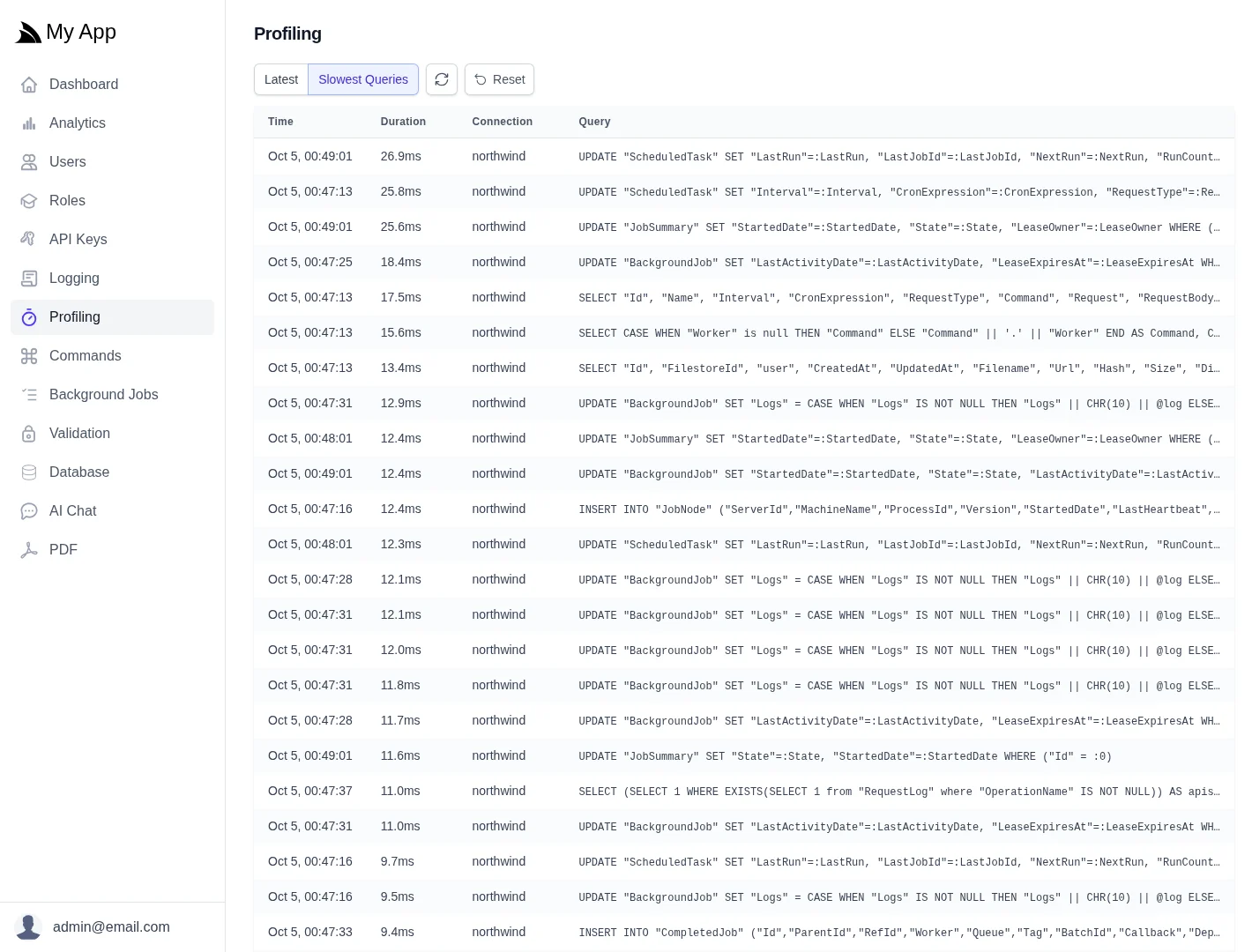
They're kept apart from the latest profiled events, so a slow query isn't lost in a busy App. By default the 50
slowest are retained, configurable with SlowQueriesLimit, or disabled with 0:
services.AddPlugin(new ProfilingFeature {
    SlowQueriesLimit = 100,
});
Selecting a query shows everything captured for it, including its full SQL, params, the connection and operation that ran it, and the trace and user it ran for.
Explain and analyze from the browser
Register the Database Admin plugin too, and every captured SELECT
can be explained and re-run from its detail panel:
services.AddPlugin(new ProfilingFeature());
services.AddPlugin(new AdminDatabaseFeature());
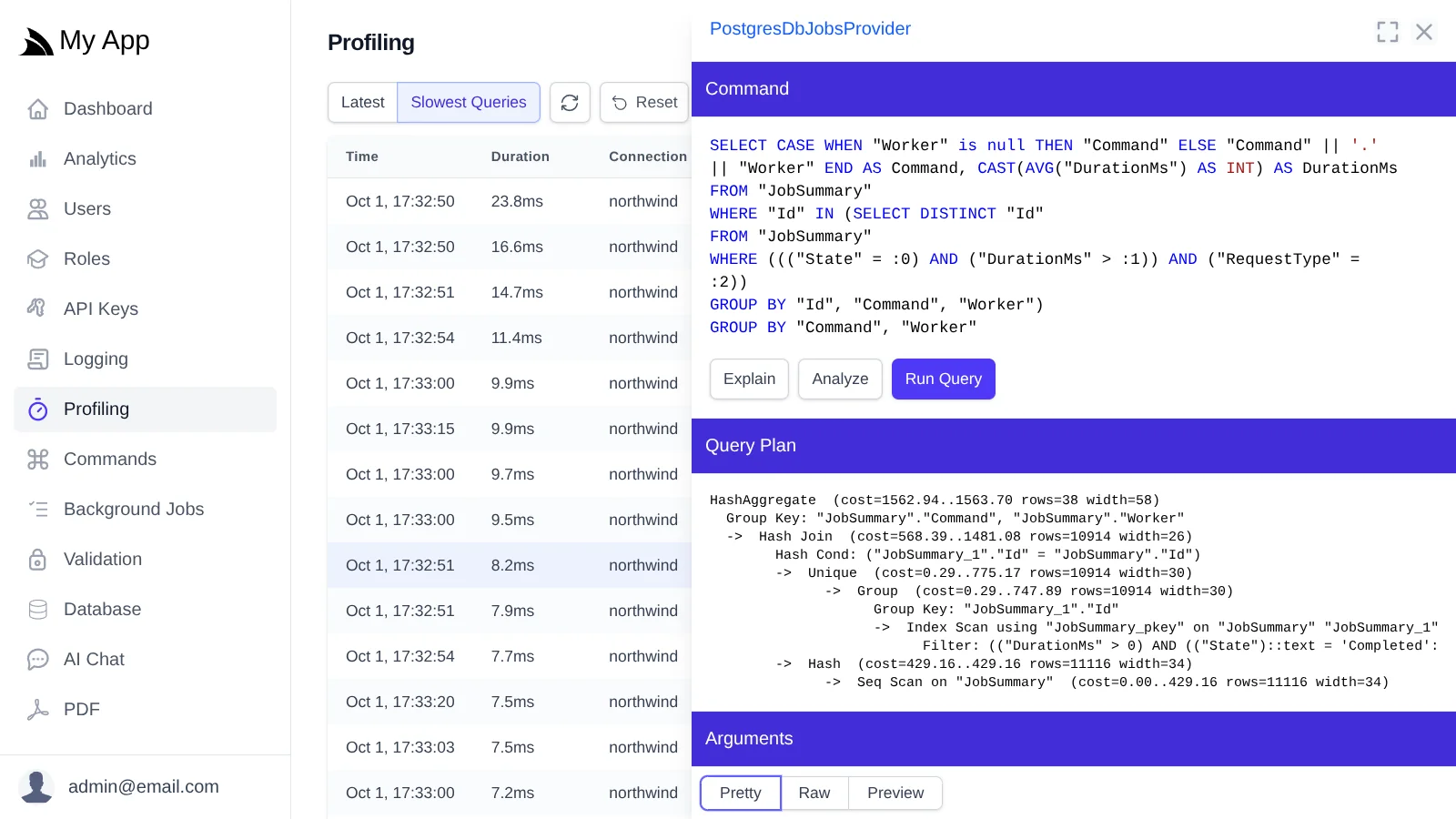
Explain shows the same query plan as db.Explain(), for the exact query your App ran, on the database it ran on.
Here it's a Seq Scan, the sign of a missing index:
Analyze runs the query to show the actual rows and time of each step. As it takes as long as the query does, it's best to try Explain first, and it's only shown for databases that support it:
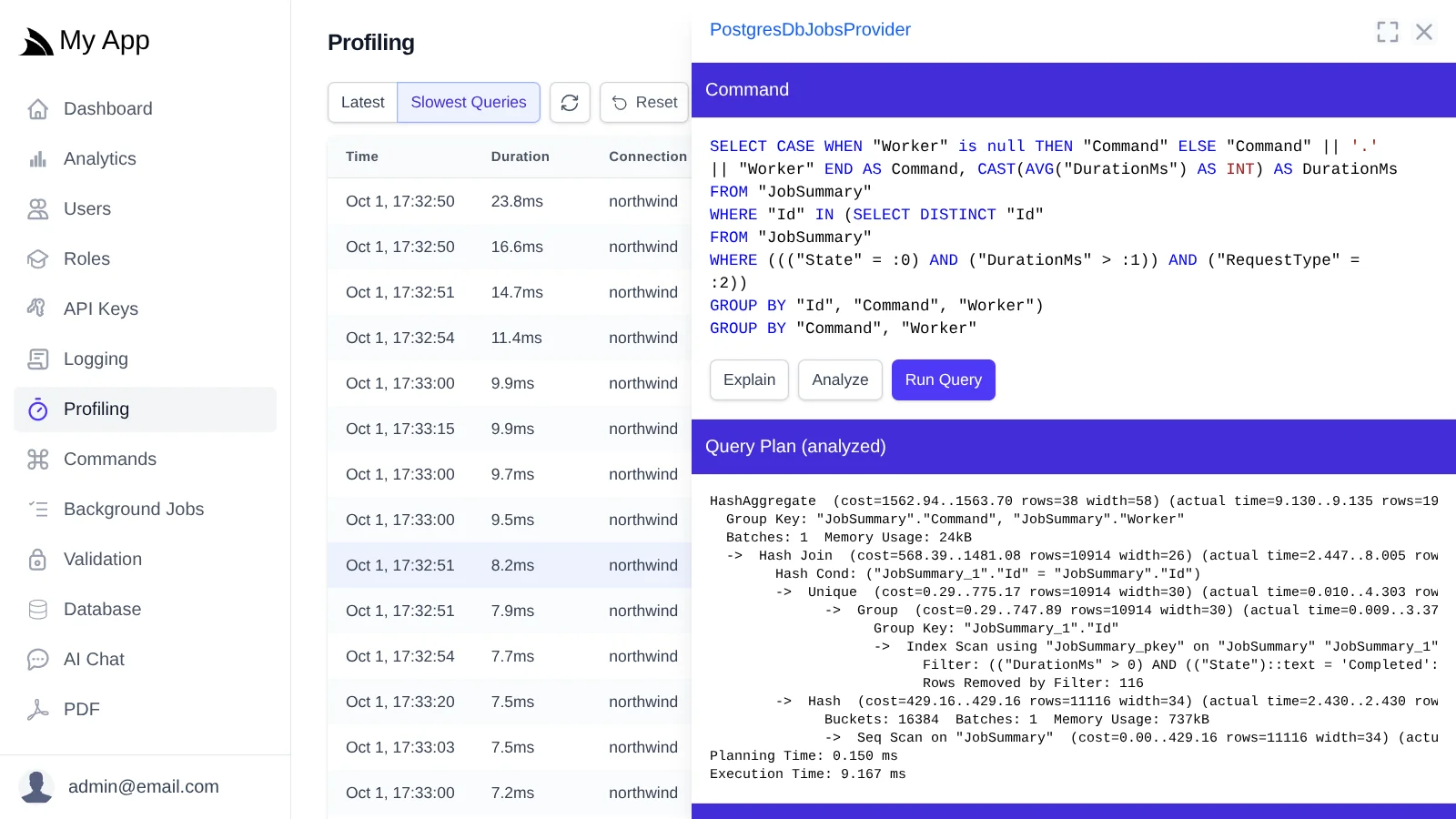
No copying SQL into a database console, and no separate monitoring tool.
Run it again, safely
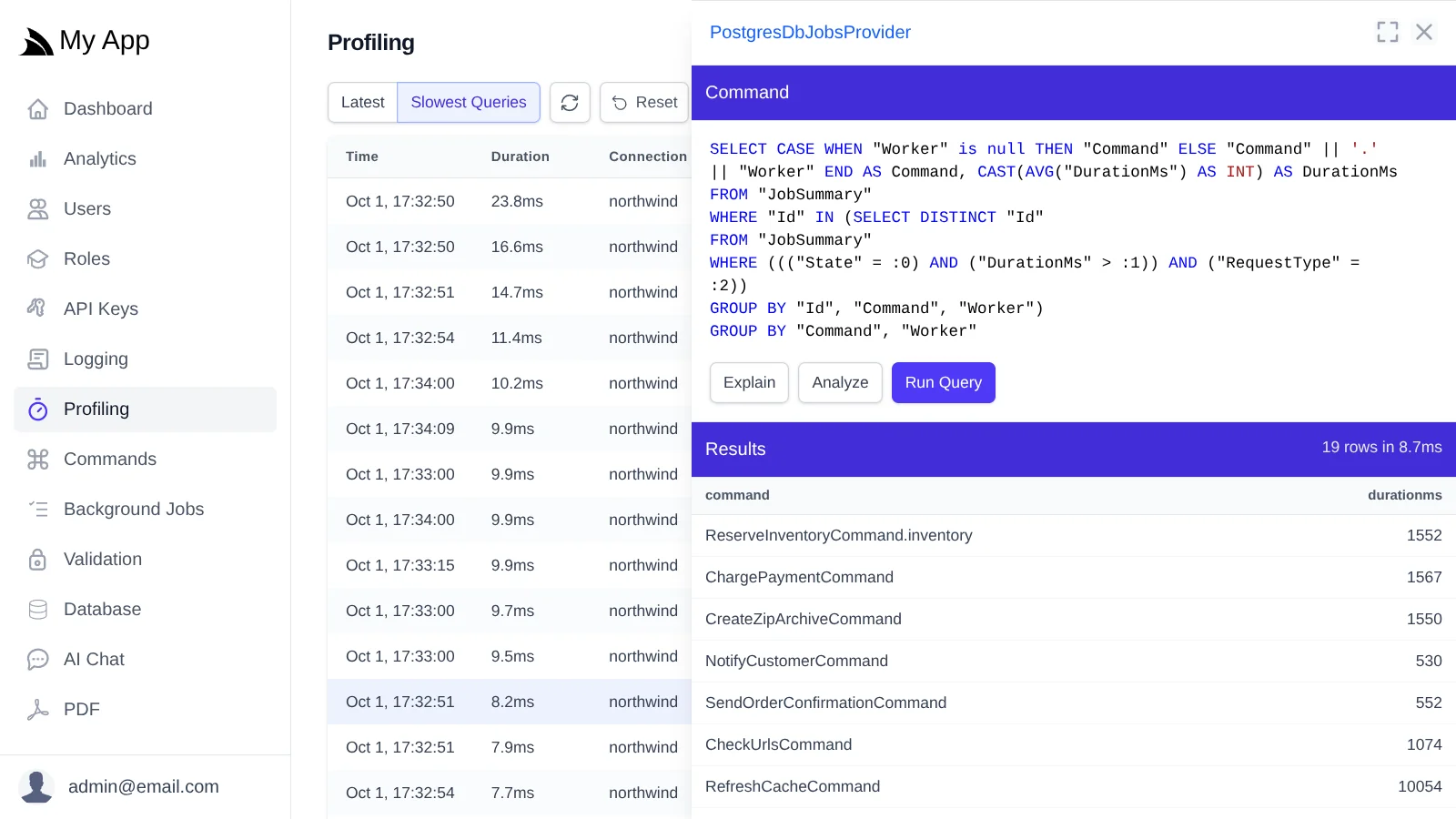
Run Query runs the query again with its original params, and shows its first rows and how long it took, so you can check a fix against real data:
All of this is designed to be safe to use on a live database:
- Only
SELECTqueries your App has already run can be explained or re-run, picked from the profiled queries. SQL can't be entered or edited. - Queries are run in a transaction that's rolled back.
- They require the
Adminrole, and run on the same named connection as the original query. - Run Query returns the first 20 rows, configurable with
RunQueryLimit:
services.AddPlugin(new AdminDatabaseFeature {
    RunQueryLimit = 50,
});
Queries run by these features aren't profiled, so they don't show up in the slowest queries.
Know the limits
- SQLite can explain but not analyze, and Oracle and Firebird can't explain
analyzeruns the statement, so only analyze SQL that's safe to run- SQL Server only returns estimated plans of statements without params, so the params are included in its SQL as
literals. The plan can differ from the one SQL Server caches for the parameterized query, which
analyzeshows - The slowest queries are kept in memory, on each server, since the App started
- A plan tells you how a query runs, deciding which index to add is still up to you
Get Started
Query plans and the Slowest Queries view are available in ServiceStack v10.4. Start with db.Explain() on the
query you're worried about, then turn on the Profiling Admin UI to find the ones you're not:
npx add-in profiling
See the docs for the complete reference:
- Query Plans -
db.Explain(),analyze, custom SQL and each RDBMS's support - Profiling Admin UI - Slowest Queries, and Explain, Analyze and Run Query from the browser
- v10.4 Release Notes - everything else in this release


