Software Licensing Next.js Project Template


Selling a desktop app means building a store around it. You need a pricing page, checkout, a way to issue license keys after payment, somewhere customers can get their key again, renewals and upgrades, downloads for each platform, and a back office to handle refunds and support. Then your app needs a way to check the key. Most licensing systems handle that with an activation server, which your customers now depend on to use the software they paid for.
Next License is a new React Template that includes the store and a simpler way to check licenses. Customers buy a license with Stripe Checkout and copy a signed license key from their account. Your app verifies the key offline, against a public key built into it, and enables its Pro features. There's no activation server to run and no network call to make.
It's built with .NET 10, ServiceStack, ASP.NET Core Identity, React 19 and Next.js 16, and includes license verifiers for both .NET and Electron apps. Try the build coverage demo below, then take a tour of the storefront and Operations Center:
Create a new Next License project with:
npx create-net next-license ProjectName
What's included
The template sells licenses for Acme Studio, an example desktop app that unlocks Pro features with a license key. It includes an example .NET console and Avalonia desktop app that verifies keys, so you can see the whole flow working before you connect your own app:
From purchase to unlock
A license goes through 4 steps from purchase to unlocking Pro in your app:
- Purchase - the customer chooses an offer on
/pricing, enters the name, organization and number of seats to register, accepts your license agreement and pays in Stripe Checkout - Fulfill - a Stripe webhook confirms the payment, and the server signs a license key and records the payment in a single transaction
- Deliver - the customer opens My licenses and copies the key, or downloads it as a license file
- Unlock - your app verifies the key with its embedded public key and enables Pro
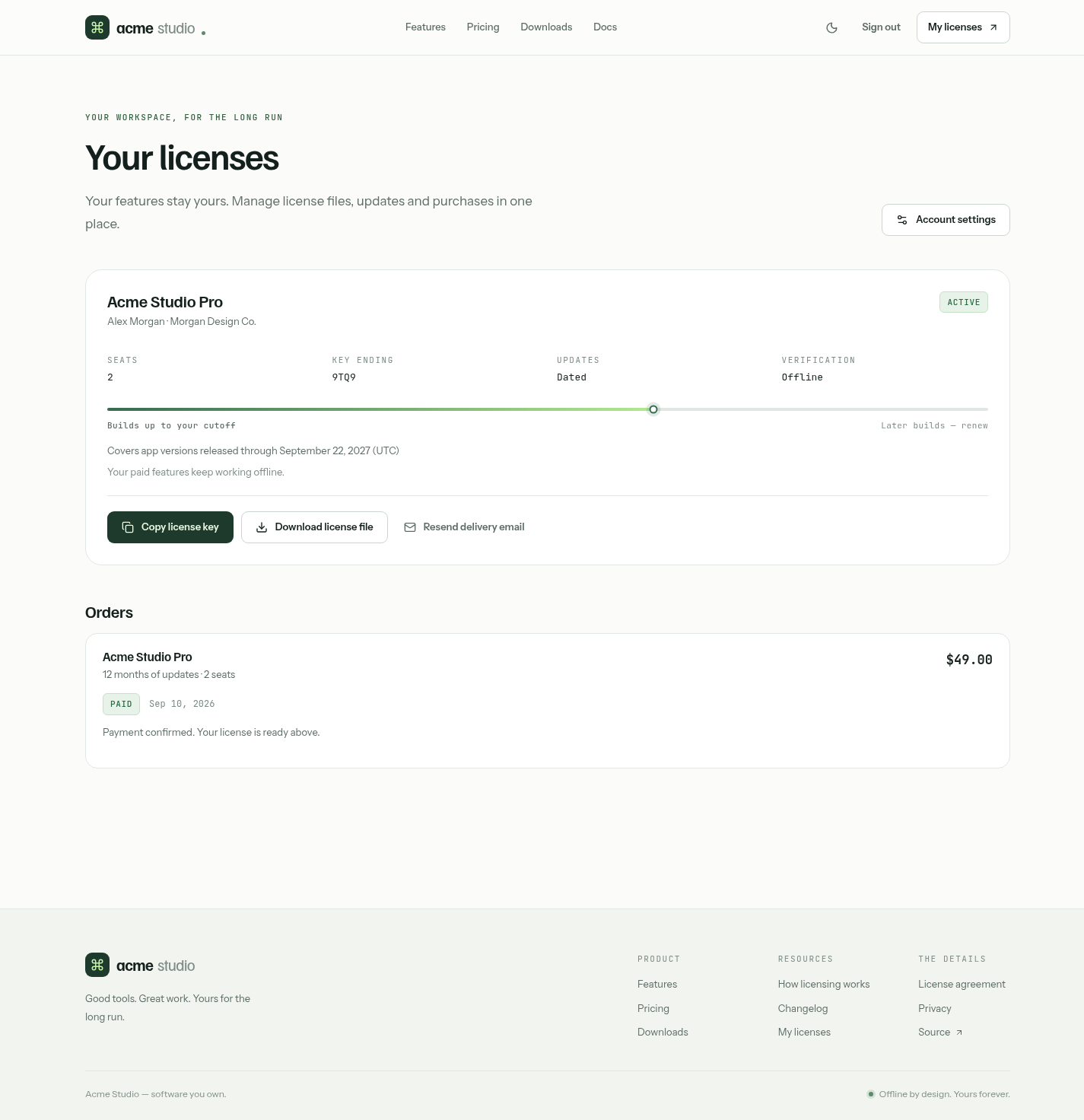
Delivery emails only link to the customer's account, they never attach the key. If an email goes missing or the customer loses their key, they can copy it again from their account at any time.
A license is a signed JWT
A license key is a standard ES256-signed JWT. Its claims contain everything your app needs to display who it's registered to and decide which builds it covers:
{
  "iss": "acme-studio",
  "aud": "acme-studio",
  "sub": "13a25819-3ed9-441f-8bcd-6a94ee56dc00",
  "name": "Alex Morgan",
  "organization": "Northstar Studio",
  "seats": 3,
  "edition": "Pro",
  "iat": 1780000000,
  "lifetime": false,
  "updatesThrough": "2027-03-21"
}
The server signs licenses with a private P-256 key that never leaves it. Your apps only contain the matching public key, which can verify a license but can't create one. Anyone can read the claims, which is how your app shows the registered name, organization and seats, but any change to them invalidates the signature.
A single command creates your key pair. It won't overwrite an existing directory, so you can't accidentally replace a key that has already signed licenses:
dotnet run --project MyApp.Licensing.Tool -- jwt ./license-keys
Because it's a standard JWT, you aren't limited to the verifiers included in the template. Any maintained JWT library that supports ES256 can verify it, in any language.
Licenses that never expire
Notice what the claims above don't include: an exp expiry date. A Next License license never expires.
Instead, it covers every build of your app released on or before its updatesThrough date, and keeps
working with those builds forever. Lifetime licenses cover every future build as well.
Your app embeds its own release date when it's built, and compares that to the license:
valid = signature valid AND issuer/product match AND paid edition
        AND (lifetime OR buildDate <= updatesThrough)
| License | App build date | Pro |
|---|---|---|
| Dated through 2026-09-21 | 2026-09-21 | Enabled |
| Dated through 2026-09-21 | 2026-09-22 | Renewal required |
| Lifetime | Any | Enabled |
| Missing, tampered or wrong product | Any | Disabled |
Nothing is compared against today's date. A covered build still works years later, changing the system clock changes nothing, and customers are never locked out of software they paid for. To get Pro in a newer build, customers renew. Renewals extend from the later of the current cutoff and the payment date, so renewing early never loses time, and the license keeps the same ID.
Unlock Pro in your app
In a .NET app, reference MyApp.Licensing and call LicenseJwt.Verify. It uses the runtime's built-in
cryptography and never contacts a server:
using MyApp.Licensing;

// Public key, issuer, product and build date come from your app, never from user input.
var result = LicenseJwt.Verify(
    pastedKey,
    embeddedPublicKeyPem,
    issuer: "acme-studio",
    product: "acme-studio",
    buildDate: "2026-09-21");

bool enablePro = result.Valid;
if (result.License is { } license)
{
    Console.WriteLine($"Registered to {license.Name}");
    Console.WriteLine($"Organization: {license.Organization}");
    Console.WriteLine($"Licensed seats: {license.Seats}");
}
In an Electron app, copy license.mjs into your app and call verifyLicense from the main process. It only
uses Node's built-in crypto, with no npm dependencies, no .NET runtime and no helper process:
import { verifyLicense } from './license.mjs';

const result = verifyLicense(savedOrPastedKey, {
  publicKey: bundledPublicKeyPem,
  issuer: 'acme-studio',
  product: 'acme-studio',
  buildDate: '2026-09-21',
});

const enablePro = result.valid;
Both return the same statuses, so your app knows exactly what to show:
| Status | Suggested app behavior |
|---|---|
valid |
Enable Pro and show the registered name, organization and seats |
missing |
Free mode with an Enter license action |
invalid |
Explain that the key can't be verified and stay in Free mode |
buildNotCovered |
Offer a renewal, or a download of a version the license covers |
editionNotCovered |
Keep Pro disabled |
An uncovered license still includes its verified registered details, so your app can show a friendly "Registered to Alex Morgan, renew to use this version" message instead of treating the customer like a stranger.
The public key and release date are embedded at build time, and the sample app fails dotnet publish if no
public key is supplied, so a demo key can't ship by accident:
dotnet publish MyApp.SampleApp -c Release -r win-x64 --self-contained true \
  -p:LicensePublicKeyFile=/absolute/path/license-public.pem \
  -p:AppBuildDate=2026-09-21
Apps that want renewals to arrive without the customer pasting a new key can use the optional
ActivationClient. It fetches the latest version of a license at most once a day, only if the user opts in,
and only saves the result if it verifies. The server stores nothing about the request, and a failed refresh
never affects Pro.
Payments you can trust
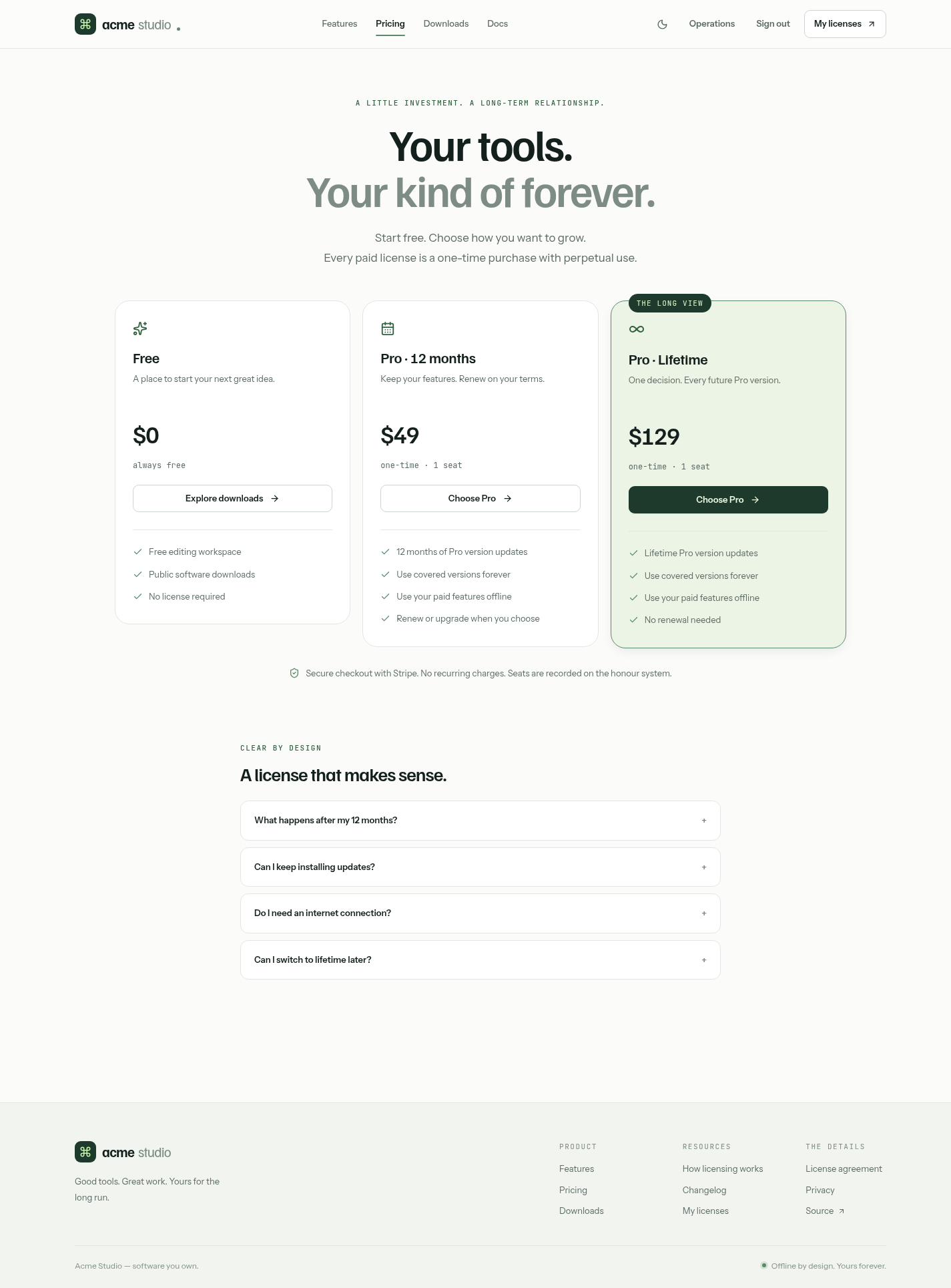
Customers pay with one-time Stripe Checkout purchases. Before redirecting to Stripe, the server records the order, its price and the checkout policy, so nothing the customer changes in the browser can alter what they're charged for:
Stripe webhooks are verified and saved to a durable inbox before they're processed by a Background Job. The webhook body alone is never trusted: the job retrieves the current Checkout Session and payment from Stripe and checks the order, price, quantity, currency, discount and tax before it signs a license. If a webhook is delayed or lost, background reconciliation checks Stripe again. Replayed events can't issue a second license, and a late failure event can't undo a successful payment.
Stripe also handles the rest of the checkout:
- Promotion codes - create coupons and codes in the Stripe Dashboard and enable them with
Stripe__AllowPromotionCodes=true - Automatic tax - enable Stripe Tax with
Stripe__AutomaticTax=true - Refunds and disputes - are recorded from Stripe events, keep partial and multiple refunds, and flag the order for review in the Operations Center
- Invoices - customers open their Stripe invoices from their order history
Downloads from your GitHub releases
Your software is built and published by your own app's repository, not the licensing server. Point the site at the GitHub repository that holds your releases:
Licensing__GitHubRepository=owner/repository
Your published releases then appear as platform download buttons on /download, with the visitor's platform
first, and as Markdown release notes on /changelog. Installer file extensions decide which platform each
download is for, like .exe and .msi for Windows, .dmg for macOS and .AppImage or .deb for Linux:
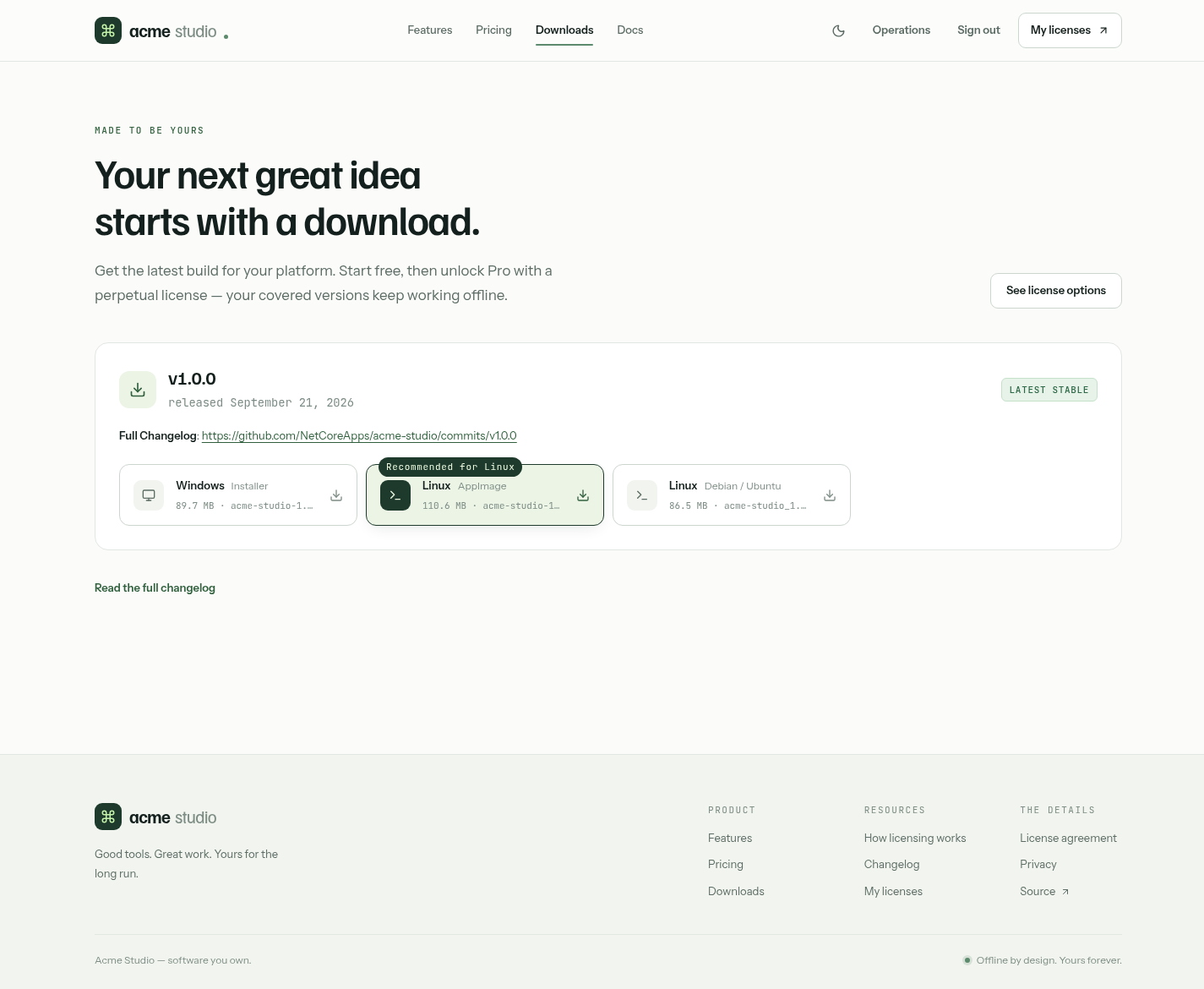
The last successful response from GitHub is saved to disk, so the download page keeps working through GitHub outages and rate limits, and across restarts.
An Operations Center for your store
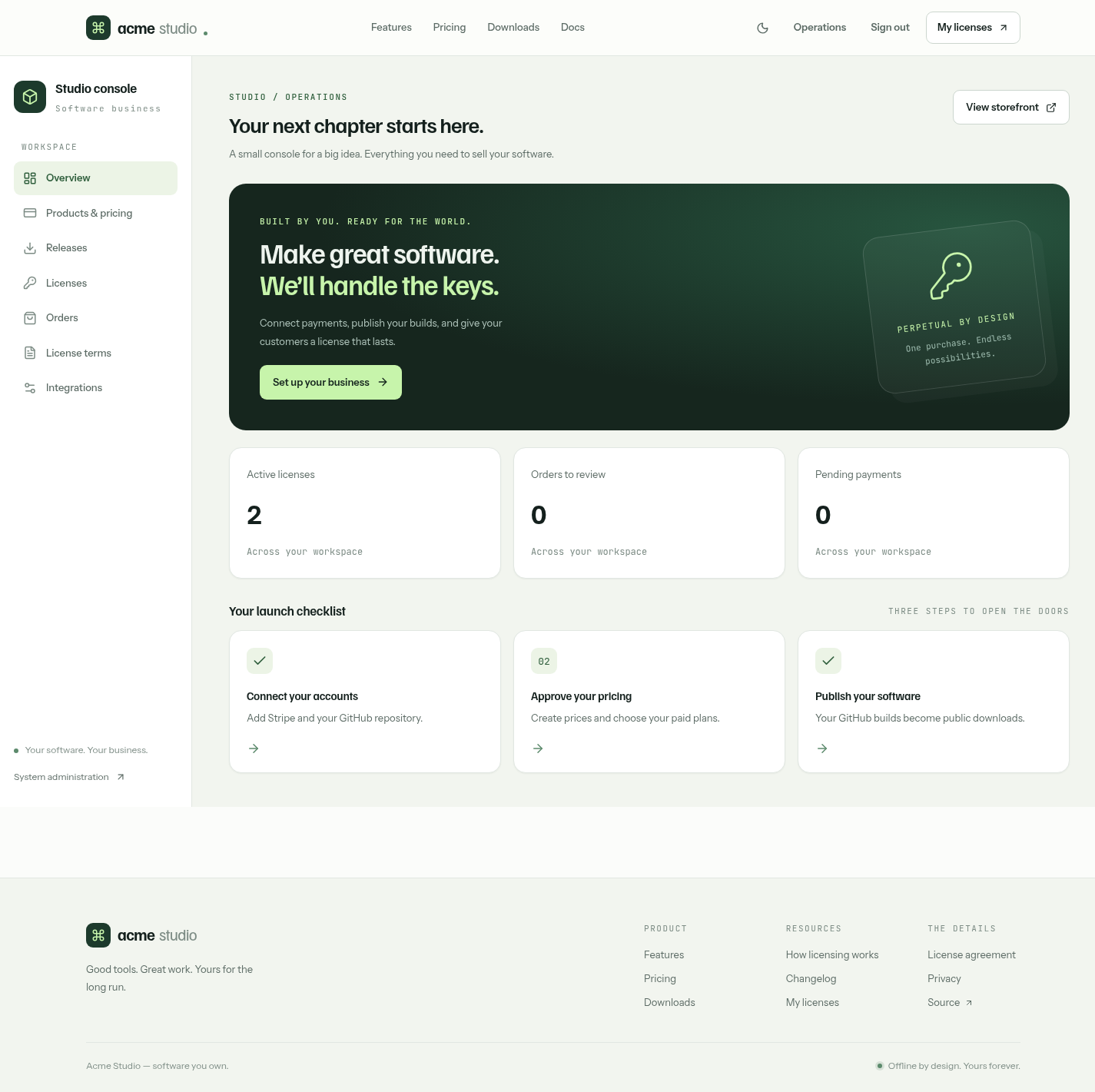
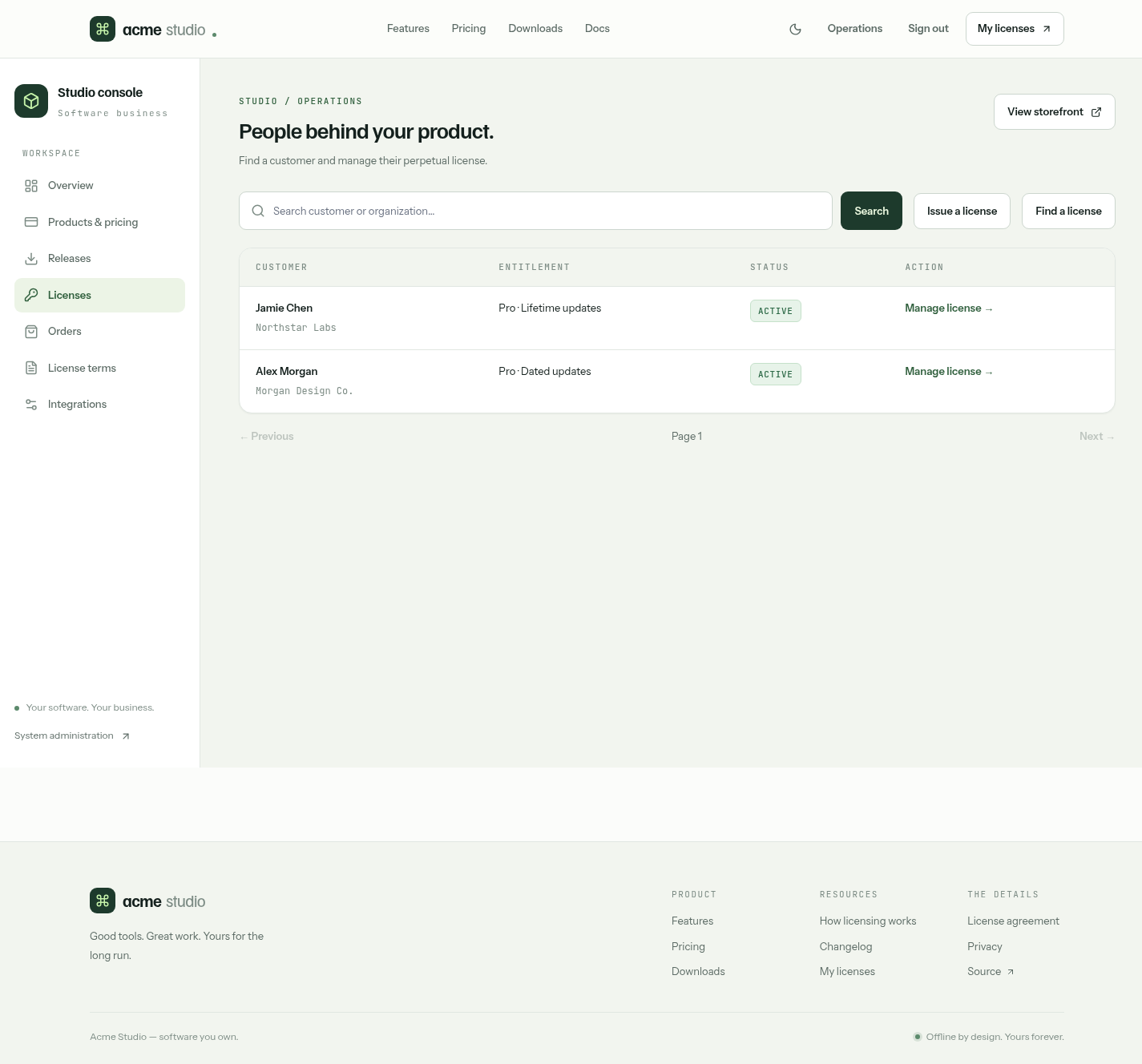
Admins manage the store from the /admin Operations Center. Its overview shows active licenses, orders that
need review, pending Stripe events and a launch checklist of what's left to configure before you can sell:
- Products & pricing - save prices, create the matching Stripe prices and approve offerings for sale
- Licenses - search licenses, extend their coverage, grant Lifetime updates or reissue them, with each change requiring a reason that's recorded in the audit log
- Issue a license - search registered customers and issue complimentary or replacement licenses
- Orders - search orders, open their Stripe payments and review refunds and disputes
- License terms - publish new versions of your license agreement with a live Markdown preview
- Integrations - check the status of your Stripe, webhook, signing key and GitHub configuration
- Releases - view your published GitHub releases with their notes and installers
Customers also have what they need to look after their own licenses. From their account they can renew a dated license or upgrade it to Lifetime, transfer it to another verified account, and choose which lifecycle emails they receive, like update reminders before their cutoff and announcements of new releases.
Honest about what it doesn't do
Offline verification is a deliberate trade-off. Your customers never depend on your server to use their software, and you never have to run an availability-critical activation service. In return, a license a customer already holds can't be switched off. Refunding, revoking or transferring a license stops your store from providing its key from then on, but copies already downloaded keep working with the builds they cover.
Next License is an eligibility check, not DRM. It doesn't count running machines, enforce seats, bill on a recurring schedule or remotely disable licenses, and a user who controls your app's code can patch its checks. For most desktop software sold to honest customers, that's the right trade-off: a clear, verifiable license that just works, without the support burden of activations.
Your choice of database, one App to deploy
Like the other React Templates, Next License runs as one ASP.NET Core App. Next.js provides the React UI
as a static export served by ASP.NET Core, so there's no Node.js server to run in production. In development,
dotnet watch proxies the Next.js dev server so you get HMR on the same origin as your APIs.
It uses SQLite by default, or PostgreSQL, MySQL/MariaDB or SQL Server by setting
Database__Provider. The included GitHub Actions deploy to any Linux server with
Kamal, with a destination for each database.
Get Started
Create a new Next License project with:
npx create-net next-license ProjectName
Then run it locally:
cd ProjectName
cp .env.example .env
cd MyApp.Client && npm ci
cd ../MyApp && dotnet watch
Sign in as admin@email.com with p@55wOrd to explore the Operations Center. To see offline verification
working without configuring anything, run the example app from the repository root. It generates disposable
keys and prints covered, uncovered and Lifetime results, or opens a desktop window with --desktop where you
can paste the example keys and watch Pro turn on:
dotnet run --project MyApp.SampleApp
dotnet run --project MyApp.SampleApp -- --desktop
The Next License docs walk you through each step, from creating your signing key and issuing your first license, to enabling Pro in your .NET or Electron app, connecting a Stripe sandbox and shipping to production. They also include reference guides for every concept, feature, operations runbook and security control in the template.


